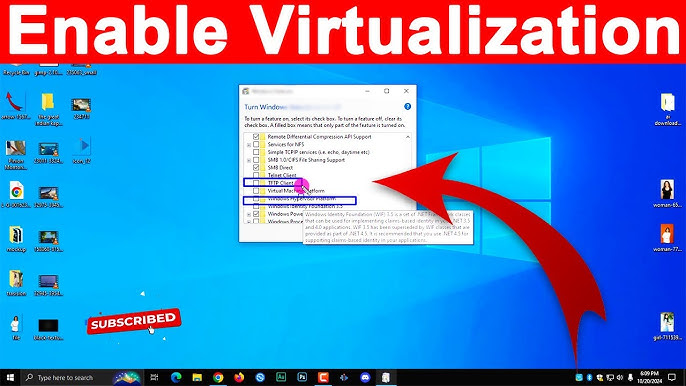

So many people keep asking me – how to enable virtualization in Windows 10? And honestly I also got confused first time I tried it. Virtualization basically means you can run virtual machines on your computer – like installing another OS (Linux, Android, even another Windows) inside your main Windows. Pretty cool if you like testing stuff. But to do this, you gotta enable virtualization in your system.
Now here’s the tricky part – virtualization is not directly enabled inside Windows settings. It’s actually a feature you have to switch on from BIOS/UEFI (that’s the setup screen you get when you press keys like F2, Delete, Esc while computer starting). I know it sounds scary, but relax, it’s not too hard.
Step 1: Check if your PC supports virtualization
First, make sure your CPU actually supports it. Most Intel processors call it “Intel VT-x” and AMD processors call it “AMD-V”. You can check this by pressing Ctrl + Shift + Esc (Task Manager) → go to “Performance” tab → select CPU → look at “Virtualization: Enabled or Disabled”. If it says Disabled, that means it’s available but not switched on. If it doesn’t show at all, maybe your CPU is too old.
Step 2: Enter BIOS/UEFI
Restart your PC, and while it’s booting press the right key to enter BIOS. It’s usually F2, Del, Esc or F10, depends on your computer brand. Sometimes you see the message “Press DEL to enter setup” when booting, so keep an eye.
Step 3: Find Virtualization Setting
Once you are inside BIOS, you need to look for virtualization option. It can be in different tabs depending on manufacturer. Some common places are:
-
Advanced → CPU Configuration
-
System Configuration
-
Security tab (on HP laptops sometimes)
Look for something like Intel Virtualization Technology (VT-x) or AMD-V.
Step 4: Enable it
If it says Disabled, just change it to Enabled. Usually you press Enter or Spacebar to toggle. After that, save changes and exit (most BIOS show “Save & Exit” with F10).
Step 5: Boot back to Windows
When your PC restarts, go again to Task Manager (same as before) and check CPU Performance tab. Now “Virtualization” should say Enabled. Congrats, it’s working!
Extra: Why enable virtualization?
Well, if you want to run software like VirtualBox, VMware, Android Emulator, or even Windows Sandbox, you NEED virtualization. Without it, those apps won’t even start. Gamers also use it for emulators sometimes.
One thing tho – turning on virtualization doesn’t slow down your PC. It only gets used when you run virtual machines. Normal daily use is same as before.
So yeah, that’s it. If you were wondering how to enable virtualization in Windows 10, the answer is basically – check CPU support, go BIOS, switch it on, done. Once you do it, you won’t need to touch again unless you reset BIOS.